Running the Example
After building the example, the following steps can be executed to run the example.
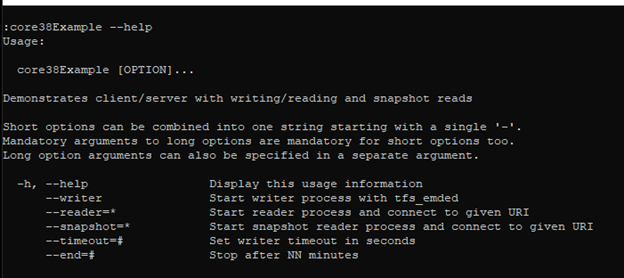
Starting the Writer
The following command will instantiate a TFS server with a connection performing constant writes to the database:
$ core38Example --writer
Writer with embedded TFS

Shutdown in 5 minutes
Timeout: 0 Second
Starting Writer Process
The TFS will be configured with a listening thread to allow external processes to connect to the same database. As long as this writer process is running, other processes will be able to connect to the TFS server running in this process.
The default settings will shut the process down after 5 minutes (this is only a demonstration) and the write process will immediately timeout if a write lock cannot be obtained (writer is blocked by a connection holding a read lock).
Options are available to change the shutdown duration and the lock timeout. For example, the following command will run the server for 60 minutes and timeout after one(1) second:
$ core38Example --writer --timeout=1 --end=60
Writer with embedded TFS

Shutdown in 60 minutes
Timeout: 1 Second
Starting Writer Process
Starting the Snapshot Reader
While the writer process above is running, the readers can be launched in another terminal window or shell. The following command will start the snapshot reader which accesses the TFS server in the write process above using a remote connection to that TFS. The snapshot read process will read sequentially through the entire database for a default of 5 minutes or until the writer process terminates, whichever comes first.
$ core38Example --snapshot=tfs-tcp://localhost:21553
Snapshot Reader connecting to TFS at tfs://localhost:21553

Shutdown in 5 minutes
Attempting to open: tfs://localhost:21553/core38
Timeout: 0 Second
Starting Reader Process
Read 10000 rows
Read 10000 rows
Read 10000 rows
Read 10000 rows
...
In the example above, the value given to the --snapshot option is the TFS URI (see Database Identifier (db-uri)). The URI provides the address of the TFS process that will be hosting the database. In the example, the remote TFS will be accessed via TCP/IP on the 'localhost' using the default port number of 21553.
When the reader starts, you will begin seeing the program displaying the number of rows that were read by the reader process.
Starting the Reader
With the writer running, the readers can be launched in another command window or shell. The following command will start the traditional reader which will constantly read sequentially through the entire database:
$ core38Example --timeout=1 --reader=tfs-tcp://localhost:21553
Reader connecting to TFS at tfs-tcp://localhost:21553

Shutdown in 5 minutes
Attempting to open: tfs-tcp://localhost:21553/core38
Timeout: 1 Second
Starting Reader Process
Read 10000 rows
Read 10000 rows
Read 10000 rows
Read 10000 rows
Read 10000 rows
In the example above, the value given to the --reader option is the TFS URI (see Database Identifier (db-uri)). The URI provides the address of the TFS process that will be hosting the database. In the example, the remote TFS will be accessed via TCP/IP on the 'localhost' using the default port number of 21553.
When the reader starts, you will begin seeing the program displaying the number of rows that were read by the reader process just as you saw in the --snapshot option above. However, the writer process will now be show 'timeout' messages indicating that it was blocked by a reader.
...
Timeout after inserting 2 rows
Timeout after inserting 0 rows
Timeout after inserting 0 rows
Timeout after inserting 0 rows
Timeout after inserting 0 rows
Timeout after inserting 0 rows
...
See Conclusion.