Windows Installation
This section covers the installation of RaimaDB for Windows and cross compiled platforms using a Windows development host. These instructions cover all object packages where Windows is the development host. That also includes other cross compiled environments where the development host is Windows.
Requirements
- The disk space required for the RaimaDB development components is relatively small, less than 100MB including tools, libraries and examples.
- The Enterprise package includes JAVA support for JAVA 8 or later. The
jar.exeexecutable should be in the system path prior to running the installer. - The libraries have been created using the Microsoft Visual Studio 2019 environment and have been tested using MSVS 2019 and MSVS 2022.
- If CMake is to be used, the minimum supported version for building the examples is V3.10.
The default directory for the installation will be a sub-directory of C:\Raima. The installer must have read/write permissions for this directory.
The installer will append the path to the RaimaDB binaries to the user PATH variable. The installer will also add entries to the HKEY_CURRENT_USER registry setting to allow the installer to detect if this RaimaDB product version has already been installed as well as facilitate the uninstall process. There are no registry settings required or used by the RaimaDB product. The HKEY_CURRENT_USER registry settings are used ONLY by the installation process. The windows system registry settings and system PATH variable will not be modified so you do not need administrative privileges to install the RaimaDB packages.
Installation Steps
To begin the install, execute the RaimaDB Installer from the file browser or a command shell as follows:
$ ./<package>-obj-<host>[--<target-os>-]-16.0.exe
Where package is the package type you have purchased and
the optional host is the host platform for development. The optional target-host is the cross-compile OS supported by this installer package.
For example, host only packages may be:
$ rdm_enterprise-obj-win-x86_64-16.0.0.1664.exe
$ rdm_core-obj-win-x86_64-16.0.0.1664.exe
A host package containing vxWorks OS targets will be:
$ rdm_core-obj-win-x86_64--vxworks--16.0.0.1664.exe
Make sure that the command is run from a user account that has the appropriate permissions for the desired installation directory.
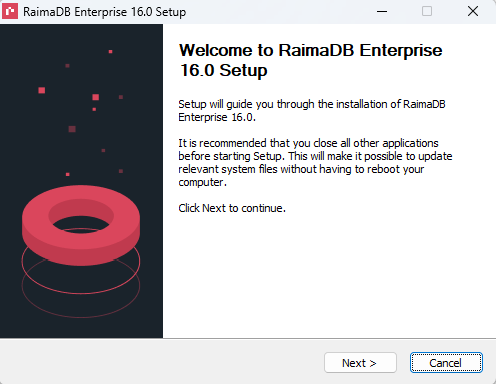
The installer will first display a welcome screen.
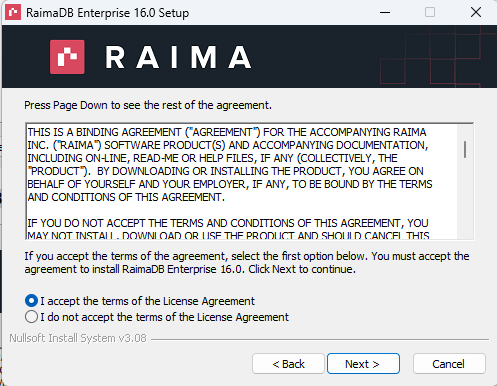
Accept the license for RaimaDB.
The installer will then ask for an install path.
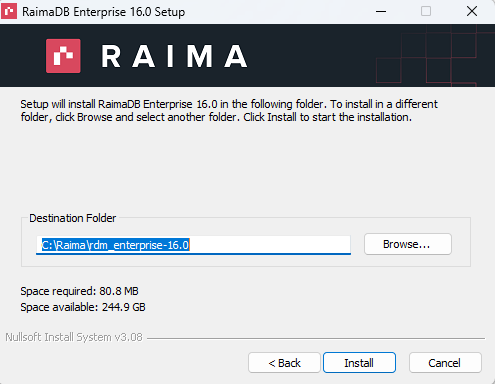
Up until this point, you have the option of canceling the install an any time. If you confirm the install by clicking "Install" the installer will create the directory C:\Raima\rdm-<package>-16.0\ within the directory specified.
Uninstall
To uninstall, simply run the uninstaller from the Windows start menu or manually run the C:\Raima\rdm-<package>-16.0\uninstall.exe executable. The uninstall process will remove the entries from the Windows start menu, remove the RaimaDB path entries for this installation and remove the C:\Raima\rdm-<package>-16.0\ directory. The installer will remove the entries it created in user PATH environment variable as well as the entries it created in the HKEY_CURRENT_USER registry settings.
If the default installation directory is chosen, the uninstall process will not delete the C:\Raima directory but it can be removed manually if it is empty.
Next Steps
Once the install process is complete, please get acquainted with building and running the examples included in the product to begin to familiarize yourself with the RaimaDB product. See the Getting Started Examples section.
If the ODBC Driver Manager is required, see the RaimaDB ODBC Driver Registration section.